

Functions to create sections of a drawing (lines, arcs, rectangles ...)
Use the drawing tools to create part, product and other drawings in the Drawing library
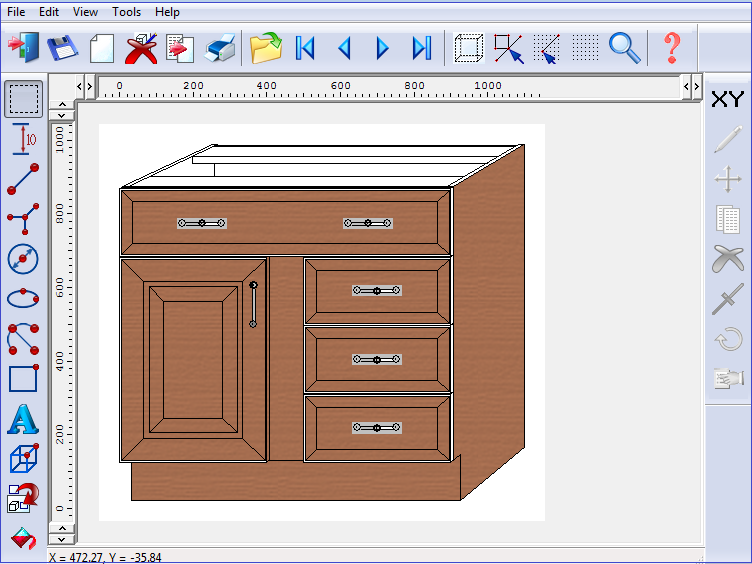
The available tools are: Select, Dimension, Line, Perspective, Circle, Ellipse, Arc, Rectangle, Text, Link, Fill. They are located in 'Function' toolbar which is typically at the left of the screen.
● Select drawing tool from Toolbar
 Use
mouse to draw object
Use
mouse to draw object
It is often best to draw the object approximately with the mouse and adjust fine details later - via the Properties dialog for each drawing object.
There are other tools on the Edit ToolBar which operate on several drawing objects, for example, spit line, rotate, change co-ordinates. The Drawing Function tools are also available on the Tools menu
Any drawing object, a box, line, or text, can be edited and moved. To do this select the object with the SELECT tool and right click with the mouse to show the options.
A drawing tool remains selected until another tool is chose. Several items can be drawn without re-selecting the tool.
Drawing using exact co-ordinates - Select the drawing tool and select the co-ordinates dialog (XY button)
Select drawing object
● Make sure the Select tool is selected
Click
on or near an object to select it
To clear a selection click away from the object
Hold down the SHIFT or CTRL key and click to add or remove an object to the current selection
